The ability to update Views is only available for SQL Server and Azure SQL connections. It's not currently supported for PostgreSQL, Snowflake, Databricks, or Fabric. See which features are supported for each database →)
SQL Server Views can be used in SQL Spreads Pro and above

Updating data in SQL Server Views are, in most cases, similar to updating data in SQL Server Tables.
Views with columns from joined tables
When updating data in Views that fetch their data from joined tables, there is a restriction that you can only update the data from one base table in each update. SQL Spreads will automatically detect the joined tables in a View and set the columns from the first base table to editable and the other columns to Read-Only.
To make the columns from another base table editable, simply uncheck the Read-Only checkbox for a column from the other base table in the Columns tab in the SQL Spreads Designer.
You can only insert new rows into the base table of a joined view. The base table is the table immediately following the FROM clause in the View definition.
Updating all columns in a View with columns from multiple Joined tables
There is a workaround that you can use to update all columns:
SQL Server allows updating columns from several joined tables in a View in the same uone update as long as you only update columns from one joined table on each row.
This is a quick explanation how that works:
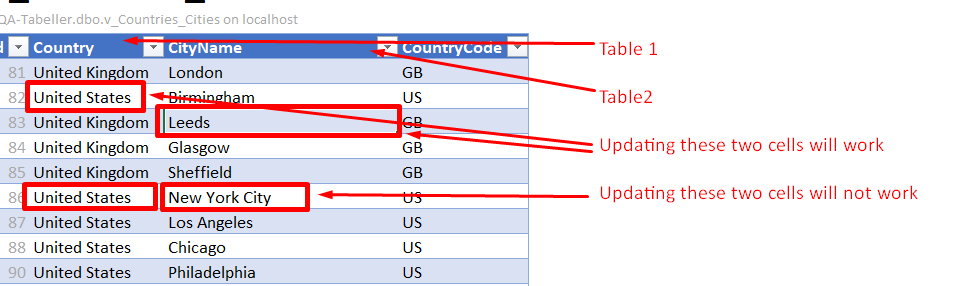
By default SQL Spreads only makes columns from one View editable when working with a Joined view. But you can turn that off and then get the behaviour described above.
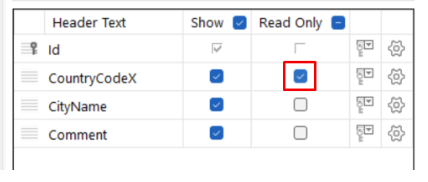
Uncheck the Read-Only checkbox for one of the columns in your View:
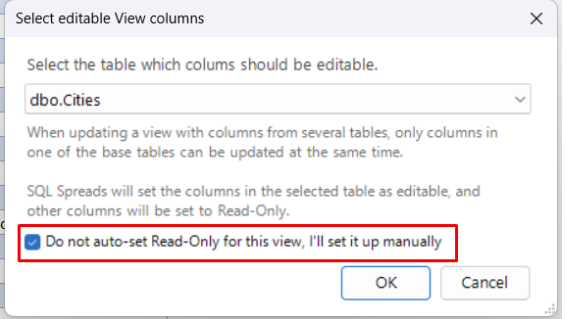
In the dialog to select which base table to update, check the checkbox at the bottom of the dialog:
Now you can update all columns in the View.
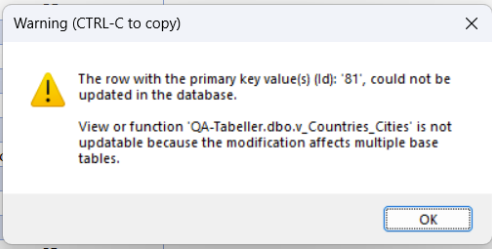
If you happen to update two columns from different base tables on the same row, SQL Server will give you this message when you are trying to save the data back to SQL Server:
Inserting rows into a view with an Identity key column
When working with a view where the underlying table's key column is an auto-incrementing identity key column, SQL Spreads cannot auto-detect that the column is an identity key column.
When you try to insert new rows into such a view you will see the following message:
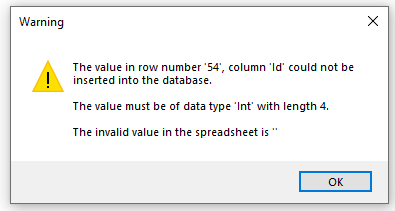
To specify that the key column is an identity key follow these steps:
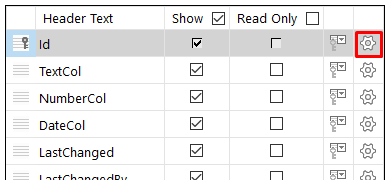
- Click the small cog on the right side in the columns tab to bring up the Column Details dialog
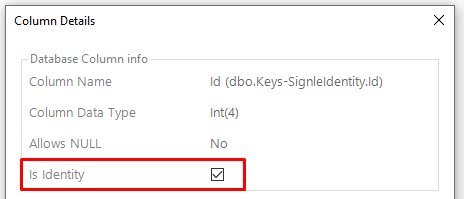
- Check the checkbox Is Identity
- Click OK
You should now be able to also insert rows into the view.